A salon booking system should move at the same pace as the business. A rolling booking window automatically opens new future dates, while an online booking widget lets clients reserve an available time without calling, sending a direct message, or leaving your site.
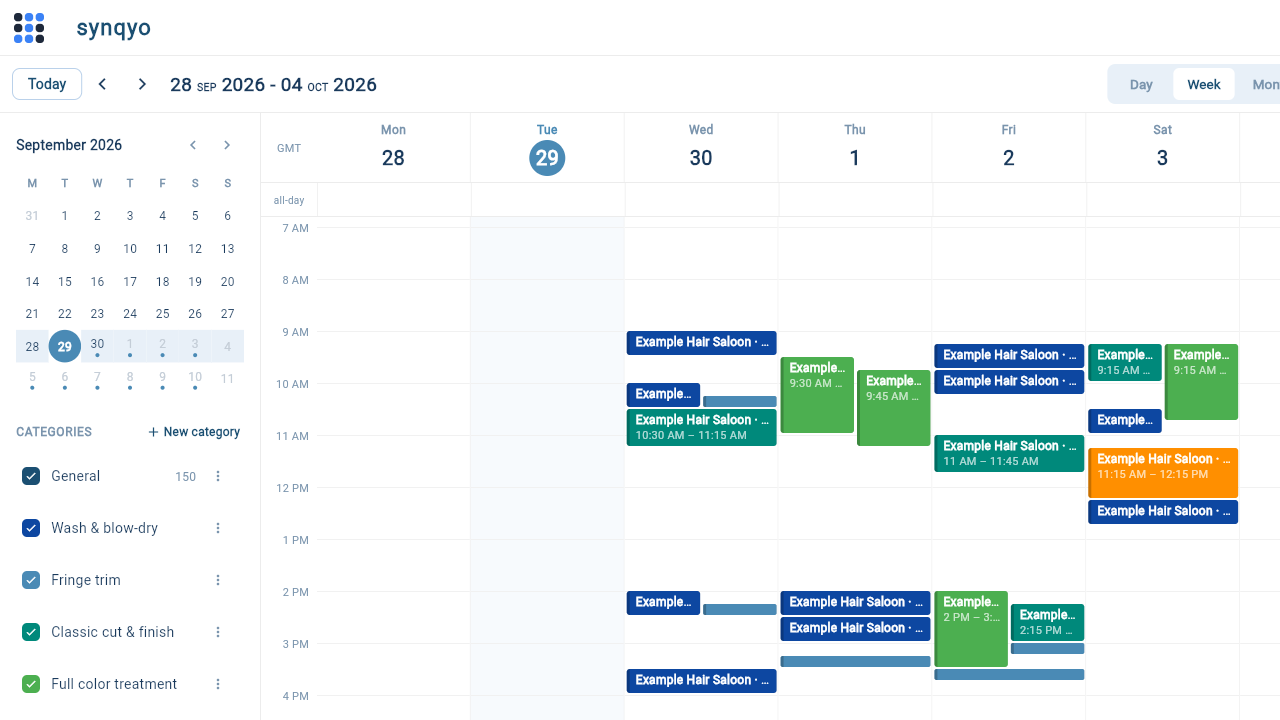
Used together, these tools remove two repetitive jobs: extending the calendar every week and answering "What times do you have?" several times a day. You define the rules once, then review and adjust the resulting appointments from one dashboard.
What is a rolling booking window?
A fixed booking calendar has a start and end date. When the end date passes, somebody has to extend it manually. A rolling window uses offsets from today instead. If your window runs from 2 to 30 days ahead, clients can always book from the day after tomorrow through the next 30 days. Tomorrow, the whole range advances by one day automatically.
The starting offset acts as your minimum notice period. The ending offset controls how far ahead clients can reserve. This keeps last-minute bookings and distant appointments within limits that suit your salon.
Choose booking rules that fit your salon
Before creating the page, decide how you want clients to use it. For most salons, first-come-first-served booking is the simplest option: a client chooses an open slot and it is reserved immediately. Set the capacity to one when each stylist handles one client at a time.
A higher capacity can work for services delivered in parallel, such as a styling workshop or several identical chairs managed as one shared resource. If clients only submit their availability and you decide who gets each time, use the assignment option instead.
- Window start: add enough notice to prepare staff and stations. One or two days is a practical starting point.
- Window end: open four to eight weeks ahead, depending on how often rotas change.
- Appointment duration: create a separate page when services need very different amounts of time.
- Capacity: use one per stylist or chair unless the service is genuinely shared.
- Client limit: restrict how many appointments one person can reserve from the same page when needed.
Set up your hair salon booking system
- Create a persistent booking. Give it a clear client-facing name such as "Haircut with Mia" or "Colour consultation".
- Set the rolling window. Enter the earliest and latest number of days from today that clients may book.
- Choose the appointment length. Match the slot duration to the service, then add your working hours.
- Block unavailable time. Add lunch breaks, closed days, training time, and any periods that an appointment must not cross.
- Select first-come-first-served. For a standard one-to-one salon service, set one place per slot and one booking per client.
- Allow useful changes. Enable client cancellation or rescheduling when that matches your salon policy.
- Publish and test. Open the client link on a phone and make a test reservation before sharing it.
A worked example for a haircut calendar
Imagine a stylist offers 60-minute haircut appointments Tuesday through Saturday. The salon requires 24 hours' notice and publishes availability for the next six weeks. Create a persistent booking with a start offset of 1 day and an end offset of 42 days. Add the stylist's hours, block lunch, select first-come-first-served booking, and set capacity to one. Every day, another date appears at the far end of the calendar without any manual update.
Colour work may need two or three hours, so it should use a separate persistent page with its own duration and hours. Keeping unlike services separate prevents a short appointment from occupying a slot intended for a longer treatment and makes each widget's wording clearer.
Add an online booking widget to your salon website
Once the booking page is ready, open its widget controls from the dashboard. Choose the salon icon, select a colour that fits your website, and write a direct launcher label such as "Book an appointment". You can also customize the window title, registration prompt, reservation message, and submit button.
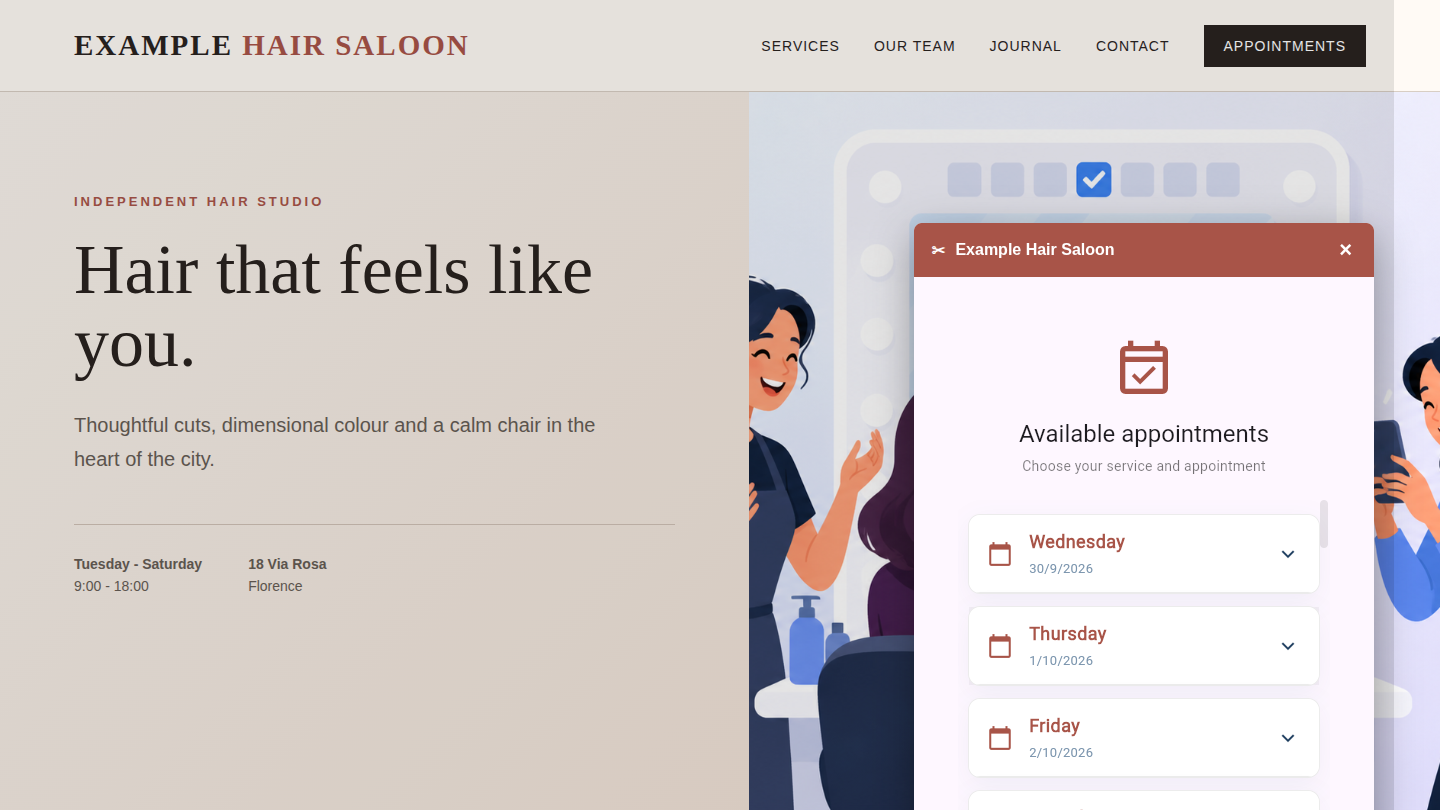
Choose whether clients identify themselves before or after selecting a time, and select the calendar or list input style that best fits your available slots. Preview the journey, copy the generated script, and place it in your website where you want the booking launcher to load. The widget opens the booking flow over the current page, so visitors can reserve without navigating away.
Where the widget works best
Place the widget on high-intent pages: your services page, contact page, and the stylist's profile page. Use one clear booking button near service prices instead of several competing calls to action. On mobile, test that the launcher is easy to reach but does not cover your navigation, cookie notice, or contact controls.
If each stylist manages a separate calendar, give each profile its own widget. If the salon books a shared pool of equivalent chairs, one widget with the correct slot capacity may be easier for clients and staff to understand.
Keep the calendar accurate
Automation only helps when the availability rules reflect real working time. Review staff rotas, holidays, breaks, and service durations regularly. Use a lead time that leaves enough room for preparation, and avoid opening months of availability when schedules are likely to change.
Finally, complete the whole flow as a client whenever you change the page or widget. Check the available dates, confirmation wording, capacity, cancellation and rescheduling rules, and the experience on both desktop and mobile. A short test protects the part clients care about most: choosing a time and knowing that the appointment is booked.
A simpler booking routine for clients and staff
A rolling window keeps future dates available without weekly maintenance. The widget turns that live availability into a booking path on the salon's own website. Together they give clients a faster answer, reduce interruptions at the front desk, and keep booking rules consistent even outside opening hours.